Room Move Tracking Report
The Room Move Tracking Report allows users to track all the room moves performed in a reservation.
Perform the following steps to generate the report:
Navigate to Reports ➜ Dynamic Reports ➜ Front Desk ➜ Room Move Tracking.
Refer to the following table and fill in the fields.
|
Field |
Description |
|---|---|
|
Report Name |
Room Move Tracking |
|
Start Date |
The start date from which the report should be generated. Displays the current property date by default. Users can select any date in the past/future. |
|
End Date |
The end date up to which the report should be generated. Displays the current property date by default. Users can select any date that is within a maximum date range of 365 days from the start date. |
|
Room Number |
It is a multi-select drop-down list that allows users to select the room numbers. |
|
Room Type |
It is a multi-select drop-down list that allows users to select the room types. |
|
Reservation Status |
It is a multi-select drop-down list that allows users to select the reservation statuses. |
|
Building |
It is a multi-select drop-down list that allows users to select the buildings. |
|
User |
It is a multi-select drop-down list that allows users to select the users. |
Click Run to generate the report.
Click Save to save the report under User Favorites section.
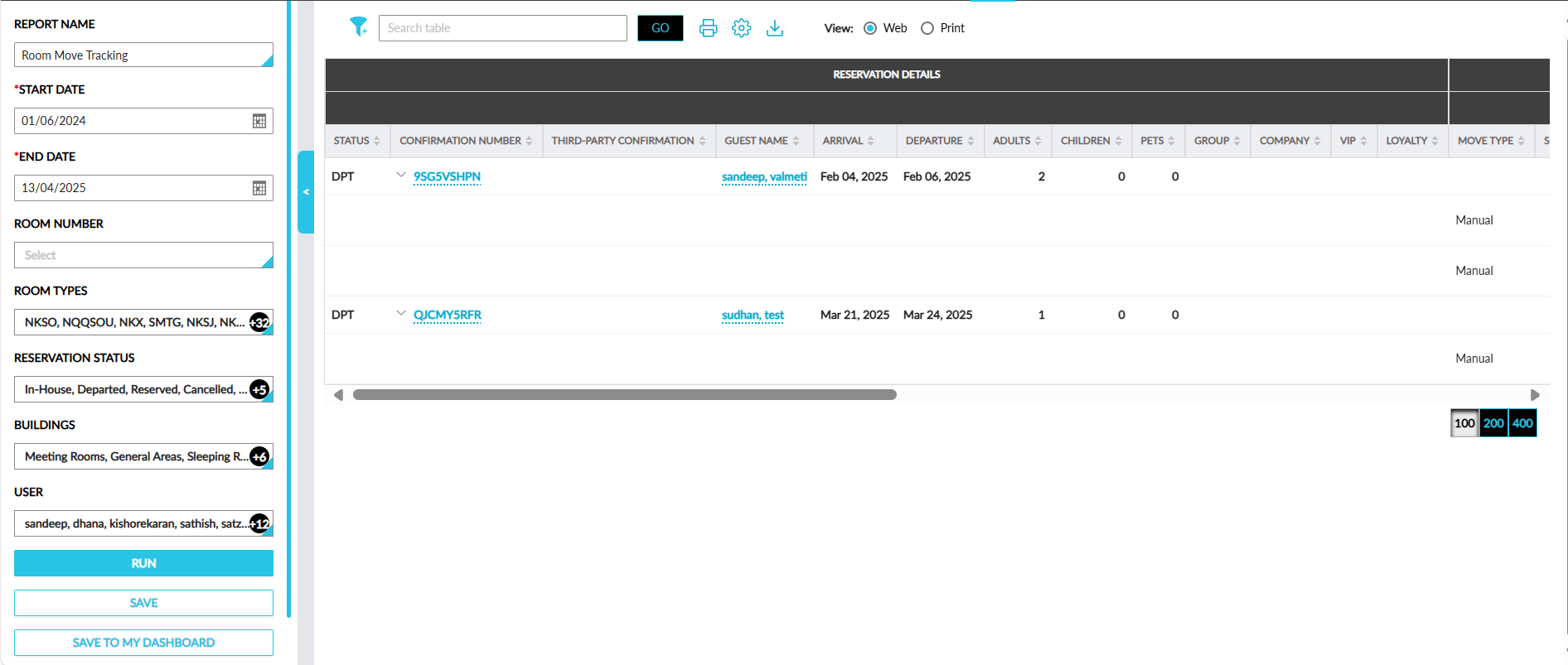
Sample Report
Report Fields
This report displays the following fields:
|
Field |
Description |
|---|---|
|
Status |
The status of the reservation. |
|
Confirmation Number |
Displays the confirmation number of the reservation. |
|
Third-Party Confirmation |
The third-party confirmation number for the reservation if applicable. |
|
Guest Name |
Displays the guest name associated with the reservation. |
|
Arrival |
Displays the arrival date of the reservation. |
|
Departure |
Displays the departure date of the reservation. |
|
Adults |
Displays the count of adults in the reservation. |
|
Children |
Displays the count of children in the reservation. |
|
Pets |
Displays the count of pets in the reservation. |
|
Group |
Displays the group name for group reservations. |
|
Company |
Displays the company name for company reservations. |
|
VIP |
Displays the VIP status associated with the reservation. |
|
Loyalty |
Displays the loyalty programs associated with the reservations. |
|
Room Move Details |
The following columns are displayed in the Room Move Details section. |
|
Move Type |
Displays the following types of room moves:
|
|
Scheduled Date |
Displays the date when the scheduled room move occurred. |
|
Scheduled By |
Displays the name of the user who scheduled the room move. |
|
From Room |
The following columns are displayed in the From Room section. |
|
Room Number |
Displays the room number from which the room move was initiated. |
|
Room Type |
Displays the room type from which the room move was initiated. |
|
Building |
Displays the building from which the room move was initiated. |
|
To Room |
The following columns are displayed in the To Room section. |
|
Room Number |
Displays the room number to which the reservation is moved. |
|
Room Type |
Displays the room type to which the reservation is moved. |
|
Building |
Displays the building to which the reservation is moved. |
|
Scheduled Room Status |
Displays the following status of the scheduled room move: scheduled or completed. |
|
Processed Date/Time |
Displays the date and time when the room move was completed. |
|
User |
Displays the name of the user who processed the room move. For scheduled room moves, the user is displayed as System User. For room moves that occur via integrations like Agilysys Express Mobile, the API Username is displayed. |
|
Reason |
Displays the reason selected when processing a room move. |
The Room Move Category column in the report is displayed only when the Room Move Reasons based on Category feature setting is enabled.